Turbo Fax: send fax from phone
- 4.6
- Rating
- 100.00K
- Installs
- Free
- Price
 Analysis by App-foxy
Faxing is one of those chores that can interrupt an otherwise simple task. A form is ready, a signature is in place, and then someone asks for a fax instead of an email attachment. That is the problem Turbo Fax tries to remove: it lets me turn a phone into a practical way to scan documents and send them by fax, while also handling PDFs that are already stored on the device.
After using it as a business utility, I found its main value is not that it makes faxing exciting. It makes an outdated requirement less disruptive. I do not need to find a physical fax machine, print a document just to transmit it, or move between several unrelated apps before sending a page. The experience is focused on getting a document from my phone to its destination with as little ceremony as possible.
Getting from a paper document to a usable fax
I find the paper-to-fax step is easiest to manage when I treat the camera capture as a document-preparation task, not just a quick photo. Before sending, I check that the page lies flat, the text is readable at phone-screen size, and the edges are included; that quick review can save a recipient from asking me to resend a blurred or cropped form. The next section looks at the situations where keeping this workflow on my phone makes a noticeable difference.
You May Also Like

 Blood Strike: 2.5 Anniversary
Blood Strike’s Loadouts Turn Every Drop Into a Tactical Gamble
A close look at Blood Strike’s custom loadouts: how fast access to signature weapons reshapes its battle royale rhythm, rewards preparation, and narrows the gap between fights.

 Pandora - Music & Podcasts
Pandora’s Music Is Easy to Start, but Harder to Recover
Pandora’s strength is its low-effort path from a seed to a station. Its weak spot is how much confidence it asks you to place in connection, setup, and quiet recovery.

 8 Ball Pool
8 Ball Pool Is Built on Rivalries, Rematches, and Routine
A close look at the rivalries, rematches, shared routines, and unanswered safety questions that turn a quick pool match into a persistent mobile community.

 Samsung Music
Samsung Music’s Quiet Strength Is Playing What You Already Own
Its reach comes less from spectacle than from dependable access to a personal library. That simplicity is both the app’s strongest retention engine and its ceiling.

 AccuWeather: Weather Radar
AccuWeather Review: A Quick, Clear Forecast for Everyday Decisions
For everyday plans, the best forecast is the one you can understand quickly. AccuWeather makes rain timing, radar, and local conditions easy to act on, with a few trade-offs.

 Hill Climb Racing
Why Hill Climb Racing Still Turns Crashes Into One More Run
A tiny car, a bumpy hill and one more upgrade: Hill Climb Racing keeps resurfacing because its simple chaos makes every near-miss feel personal.
More From Our News Desk



A setup that makes sense for occasional users
The app comes from Piksoft Inc. and sits in the Business category, but I would not describe it as something reserved for large offices. Its appeal is stronger for people who fax only when a particular organization demands it: a small business owner, a freelancer, a property manager, or someone dealing with paperwork from an institution.
The first useful distinction is between a paper document and a PDF. If I have a paper form, the phone camera is the natural starting point. If the document already exists digitally, I can work from the PDF instead of printing it and photographing the printout. That second route is easy to overlook, yet it is one of the app's most sensible time-saving choices.
For the cleanest result, I prepare the document before opening the sending workflow. I check that every page is present, that signatures are visible, and that no sensitive page has been left out. With a paper document, I place it on a flat surface with even lighting and keep the phone parallel to the page. This is not a special trick for this app; it is simply the difference between a readable scan and a fax that creates another round of questions.
I also recommend reviewing the document as a complete packet rather than treating each page as an isolated image. A fax recipient may receive exactly what I select, so page order matters. If the first page is a cover sheet or instruction page, I make sure the actual form follows it. This small check prevents a surprisingly common kind of administrative delay.
What the free download really means
Turbo Fax is free to install and is rated for Everyone, which makes it easy to try without committing to a purchase upfront. The app includes in-app purchases ranging from $1.49 to $8.99 per item. In practical terms, I would treat the download as a way to inspect the workflow first, then consider the cost attached to the specific faxing need rather than assuming every use is covered by the initial installation.
That pricing structure is worth keeping in mind if faxing is part of a weekly business routine. Someone who sends a document once in a while may find the convenience worthwhile. Someone who needs a dependable, high-volume office process should compare the ongoing expense with a dedicated fax service or an office plan before making this the central tool.
The app has been available since Nov 10, 2016, and its current version is 1.0.13. It requires Android 5.0 or later, so it is suitable for many older Android phones as well as newer devices. I still would not confuse broad device compatibility with guaranteed performance on every handset. Camera quality, storage space, screen size, and the condition of the phone can all affect how comfortable document preparation feels.
A realistic first-use workflow
My preferred first session would be deliberately unhurried. I would open the app, choose whether the source is a camera scan or an existing PDF, inspect each page, and only then enter the recipient details. Doing this once carefully makes later use much faster because the important decisions become familiar.
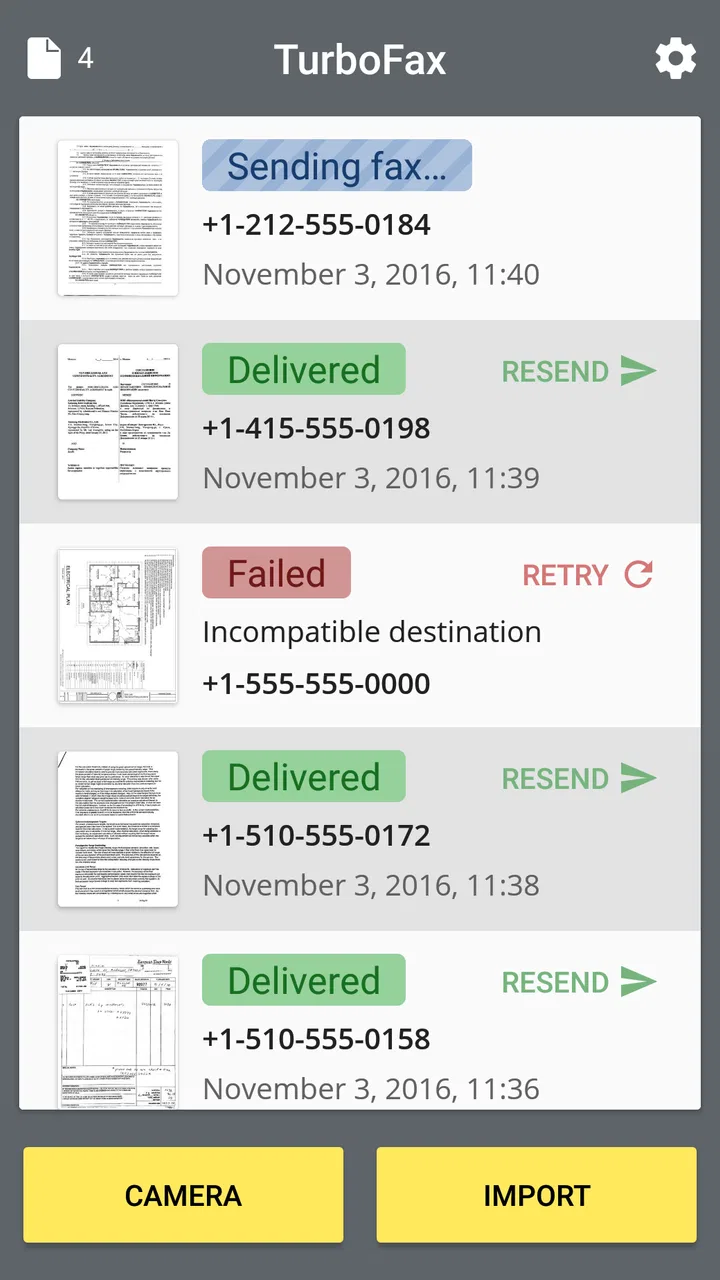
The most useful habit is to pause before the final send action. I check the recipient number character by character, confirm that the correct file is attached, and look at small print near the edges of every page. Faxing is not forgiving when a number is wrong or a document is cropped. A few seconds of checking is more valuable than repeatedly sending an incomplete form.
I also keep the original PDF or paper document until the transaction is finished. The phone version is convenient, but it should not become the only copy of an important contract, application, or signed authorization. Keeping the source available gives me something to resend if the recipient reports a problem or if I discover that a page was missing.
Where the app saves time in everyday work
The biggest everyday gain is avoiding an unnecessary trip to office equipment when a PDF is already on my phone or a paper form needs to go out while I am away from my desk. I still choose email or a file portal when the recipient accepts them, but when fax is required, fewer handoffs make the task simpler. That distinction helps set realistic expectations for where the app is most useful.
Last-minute forms away from the office
Imagine being asked to return a signed form while sitting in a car outside an appointment, or while working from a location without office equipment. If the form is already on the phone, the usual chain is frustrating: locate a printer, print the pages, find a fax machine, and hope the machine is available. A mobile fax workflow removes much of that physical detour.
In that situation, I would use the PDF route, review the signature and page order, and send it directly from the device. The time saved is not only the minutes spent searching for hardware. It is the mental interruption of changing locations, handling paper, and remembering which version of the document was printed.
Small businesses with occasional fax obligations
A sole proprietor may not need a fax machine every day, but a supplier, insurer, landlord, or public office can still request one. For that type of business, a phone-based option is more sensible than dedicating desk space to equipment that sits unused most of the time.
I especially see value for people who already keep invoices, signed agreements, and application forms as PDFs on their phones. The app fits into that existing habit instead of forcing a separate paper workflow. It is less useful if the business stores everything on a computer, requires several employees to share a controlled process, or needs a formal archive that a mobile utility does not replace.
Scanning a paper document when no scanner is nearby
The camera option is helpful when someone hands me a paper form and expects it back quickly. I can capture the page rather than searching for a scanner. The important trade-off is quality control: a phone camera can produce a perfectly serviceable document, but it can also introduce shadows, tilted edges, glare, or unreadable fine text.
For a single page with large, dark text, that trade-off is usually acceptable. For a multi-page legal document, a faint receipt, or a form with dense small print, I become much more cautious. If the content is difficult to read on the phone screen before sending, it is unlikely to become clearer for the recipient after transmission.
Keeping a backup plan for urgent paperwork
I would use Turbo Fax as a convenient route, not as permission to ignore deadlines. Before sending something time-sensitive, I make sure the phone has enough battery, the document is accessible offline, and I have an alternative way to contact the recipient if the transmission needs confirmation. This is a practical distinction between convenience and reliability.
For important paperwork, I also save a copy with a meaningful filename before beginning. A name that identifies the client or purpose is much more useful later than a generic camera-generated label. Even when the app handles the sending step smoothly, my own organization determines how easy it is to prove what I sent and when I prepared it.
The friction it removes—and the friction it cannot remove
The clear win is physical access. I do not need a fax machine beside me, and I can start with a document that is already on the phone. That is a meaningful improvement over traditional office equipment for mobile workers and occasional users.
It also reduces the number of handoffs. Printing, scanning, and faxing separately create several opportunities for pages to be lost or mixed up. A direct phone workflow keeps the document closer to its digital source. That does not make mistakes impossible, but it gives me fewer physical steps to manage.
What it cannot remove is the awkwardness built into faxing itself. I still need the correct destination details, a readable document, and a recipient who can receive and process the transmission. If the other side requires a cover page, a particular naming convention, or a confirmation call, the app cannot decide those administrative details for me.
I also would not expect a mobile fax tool to replace document management. It is designed around sending, not around becoming the authoritative home for every business record. I keep important originals in the storage system I already trust and use the app as the bridge between that file and a fax-dependent recipient.
How it compares with the usual alternatives
Compared with a physical fax machine, the advantage is obvious when I am away from an office or fax too infrequently to justify equipment. A machine can be more familiar in a workplace, especially when several people need to send pages and the office already has a process for filing confirmations. For a single mobile user, however, the machine adds travel and handling that this app is meant to avoid.
Compared with emailing a PDF, Turbo Fax is useful only when the recipient specifically needs fax. Email is usually easier for collaboration, allows straightforward attachments, and fits modern document exchange better. I would not choose fax merely because the app makes it available. I choose it when the receiving organization will not accept email or treats fax as part of its procedure.
Compared with a desktop scanner and a separate fax service, the app is more convenient for quick, small jobs. The desktop arrangement can be better for high-volume scanning, consistent image quality, and shared office administration. If a team sends many packets every day, a larger workflow may justify its extra setup.
Compared with a general document-scanning app, this one has a narrower purpose. A scanner app may be better for organizing receipts, exporting searchable files, or building a long-term archive. Turbo Fax makes more sense when the next action after scanning is transmission rather than storage and editing.
Small habits that improve the experience
Inspect page edges before sending. A slightly cropped account number or signature can make an otherwise successful transmission useless.
Use the PDF whenever the original is already digital. It avoids a needless print-and-camera cycle and usually gives me a cleaner starting document.
Separate sending from record keeping. I retain the source file and note the recipient in my own filing system instead of assuming the sending app is a complete archive.
Test the workflow before an emergency. Learning the screens while a deadline is approaching is exactly when a small unfamiliar step becomes expensive.
These habits reveal the app's real role. It is not a replacement for careful paperwork; it is a way to shorten the path between a prepared document and a fax-required destination. The more organized the source document is, the more useful the app becomes.
Who should use it, and who should skip it
I would recommend it to Android users who occasionally need to send a fax, keep PDFs on their phones, or work away from office equipment. It is particularly practical for freelancers, mobile service providers, small operators, and anyone who has been forced to solve a one-off fax request at an inconvenient time.
I would be less enthusiastic for a company that needs centralized access, repeatable team permissions, extensive records, or a high-volume transmission routine. In those cases, a dedicated business fax service or office setup may offer a better operational fit, even if it is less convenient for one person.
I would also skip it when email, a secure file portal, or another accepted digital channel is available and the recipient does not require fax. Faxing adds an unnecessary step in that situation. The app is valuable because it handles a specific obstacle, not because fax is automatically the best way to exchange documents.
My final view
Turbo Fax succeeds when I judge it by the problem it is trying to solve: getting a readable document sent by fax without being tied to a fax machine. Its strongest feature is the reduction of interruption. I can work from a paper document or an existing PDF and keep the task within the phone instead of turning it into an office errand.
There are still reasons to be careful. The free installation does not mean every sending need is cost-free, image quality depends heavily on how I capture the page, and the app does not remove the need to verify recipients or preserve important records. Those are not minor details when paperwork is urgent or sensitive.
With that in mind, I see it as a focused utility rather than a complete business document system. The 4.6 average from around 3.6 thousand ratings and more than 100 thousand installs suggest that many Android users find the approach useful. My recommendation is straightforward: if fax requests appear occasionally in your work and mobility matters, it is worth trying. If you need a shared, high-volume, tightly managed office process, choose a broader service instead.
FAQs for Turbo Fax: send fax from phone
01What is Turbo Fax: send fax from phone, and how does it work?
Turbo Fax: send fax from phone is a mobile faxing app that lets you send documents without using a traditional fax machine. After installing it, you can select files or capture pages with your phone’s camera, enter the recipient’s fax number, review the document, and submit it for transmission. The exact workflow and available options may depend on the app version and your device.
02Which documents and file formats can I send with Turbo Fax?
The app is designed for common business and personal documents, such as contracts, forms, invoices, letters, and scanned pages. Before sending, check whether your files meet the app’s supported format, size, and page limitations, since these can vary by version or subscription plan. PDF files are generally the most convenient for faxing because they preserve the document’s layout across devices.
03Does Turbo Fax require payment or a subscription to send faxes?
Turbo Fax may offer free installation but charge for fax transmission through credits, individual purchases, or a subscription. Pricing, page allowances, trial conditions, and renewal terms can change, so review the in-app payment screen and the store listing before confirming a purchase. Also check whether a failed transmission consumes credits and remember to manage subscriptions through Google Play or the App Store.
04How can I make sure my fax is sent successfully?
For the best result, use a clear, well-lit scan, make sure every page is correctly ordered, and verify the recipient’s fax number before sending. A stable internet connection is important because the app uploads your document and processes the transmission online. Afterward, look for an in-app status, confirmation message, or transmission record. If the fax fails, review the error details and try again.
05Is Turbo Fax safe for sending private or sensitive documents?
You should treat Turbo Fax like any online document service and review its privacy policy before transmitting confidential information. Avoid sending highly sensitive documents unless you understand how files, contact details, payment information, and transmission records are handled. Use the official Google Play or App Store version, keep the app updated, and remove unnecessary document copies from your phone after sending if privacy is a concern.
Pros
- Send faxes directly from your phone without a fax machine.
- Supports document uploads from photos
- files
- and cloud storage.
- Useful for sending paperwork while traveling or away from the office.
- Fax status tracking helps confirm whether a transmission was successful.
- Simple interface makes occasional faxing easy for most users.
Cons
- Fax credits or subscriptions may become expensive for frequent sending.
- Some destinations may require extra time before the fax is delivered.
- Scanning quality depends heavily on your phone camera and lighting.
- Sensitive documents are handled through a third-party online service.
- Receiving faxes may require a separate number or paid plan.

Turbo Fax: send fax from phone
Gallery